
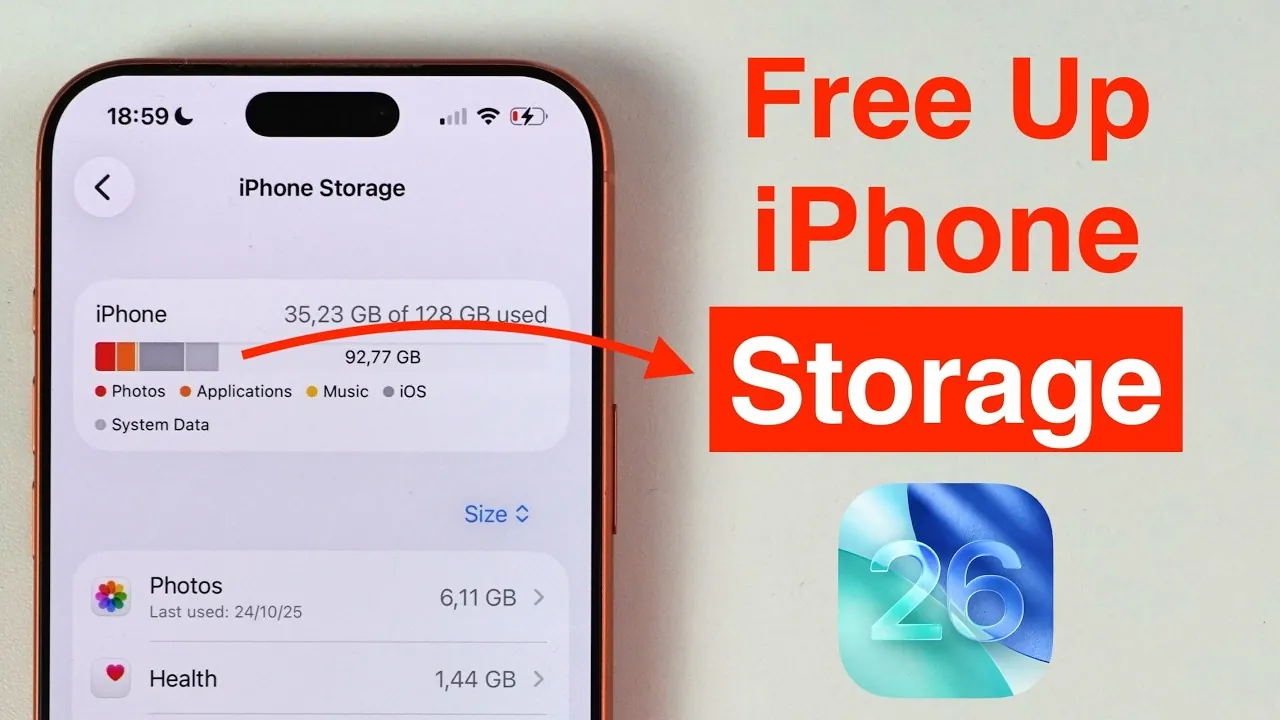
iPhone Storage Struggles: Can Deleting Built-in Apps Really Solve the ‘Storage Monster’ Problem?
For many iPhone users, the frustration of a “Storage Almost Full” notification is a common experience. In some extreme cases, users have reported that system data or pre-installed applications have become storage monsters consuming up to 23GB of space, although others have seen system data swell to 100GB following iOS updates. This often leads users to believe that their photos and videos are the primary culprits, when in reality, built-in applications can be the hidden cause of capacity issues.
To combat this, many Apple enthusiasts have turned to a specific method to resolve these storage bottlenecks by removing pre-installed software. While some reports claim that a single workaround can release as much as 82GB of space, the actual impact of deleting built-in apps is more nuanced.
Apple first introduced the ability to delete certain pre-installed applications with the release of iOS 10. By the time iOS 16 arrived, the number of removable built-in apps grew to nearly 30. This list includes essential utilities such as the Clock, Health, and Identify apps, as well as others like News, Calendar, Notes, Reminders, Maps, Music, Podcasts, Weather, Files, Home, Mail, Shortcuts, Voice Memos, Calculator, Compass, Contacts, Fitness, Apple TV, FaceTime, iTunes Store, Watch, Measure, Stocks, Books, Translate, and Tips.
However, there is a significant distinction between removing an app icon and erasing the underlying system functionality. For instance, deleting the Find app does not disable the iPhone’s built-in location tracking; however, the app must be reinstalled if the user wishes to manage AirTag locations. Similarly, removing the Contacts app does not prevent users from viewing contact information via the Phone or Messages apps, though editing those contacts requires the app to be present. This highlights a critical point in iOS architecture: some built-in apps may seem “undeletable” or provide minimal storage gains because the core system files remain on the device.
Industry analysis suggests that simply deleting these pre-installed apps provides negligible benefits for those looking to free up significant storage space. The move is more effective for users wanting to declutter their home screens rather than those fighting a critical lack of gigabytes.
For users who still wish to remove these applications to organize their interface, there are two primary methods:
- Home Screen Method: Long-press the desired app, select “Remove App,” and then confirm by selecting “Delete App.”
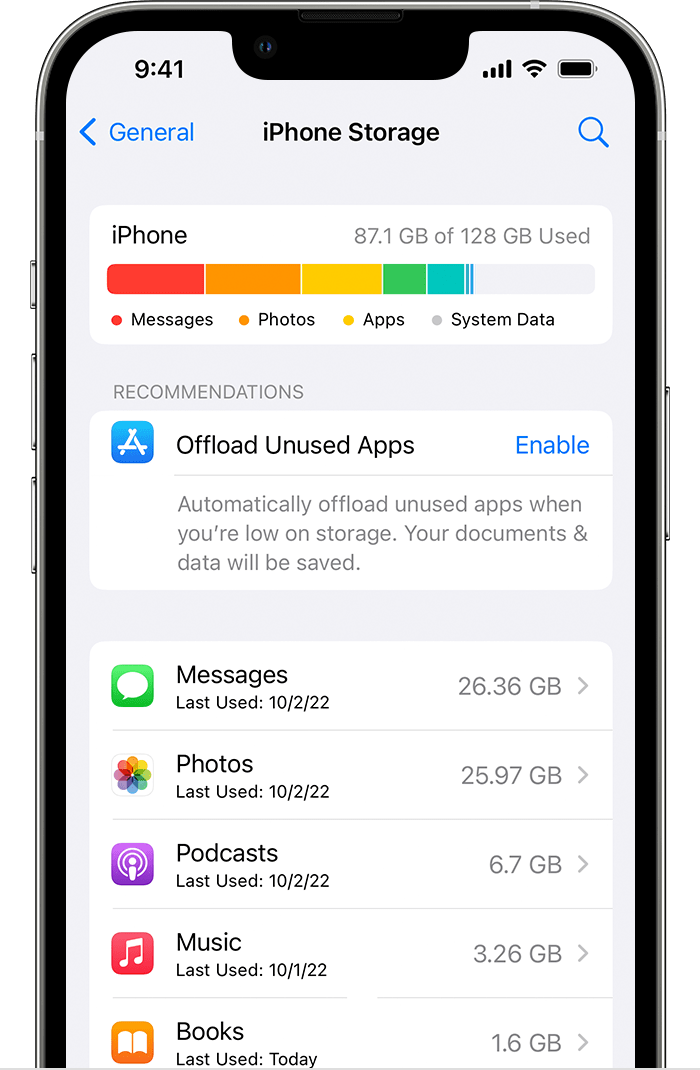
- Settings Method: Navigate to Settings > General > iPhone Storage, locate the specific app in the list, and select “Delete App.”
As Apple continues to refine iOS, the ability to hide apps in the App Library (introduced in iOS 14) and change default browsers or email clients offers further customization. This evolution reflects a broader trend in mobile operating systems toward giving users more control over their digital environment, even if the underlying system files remain bundled for stability and integration across the Apple ecosystem.
