
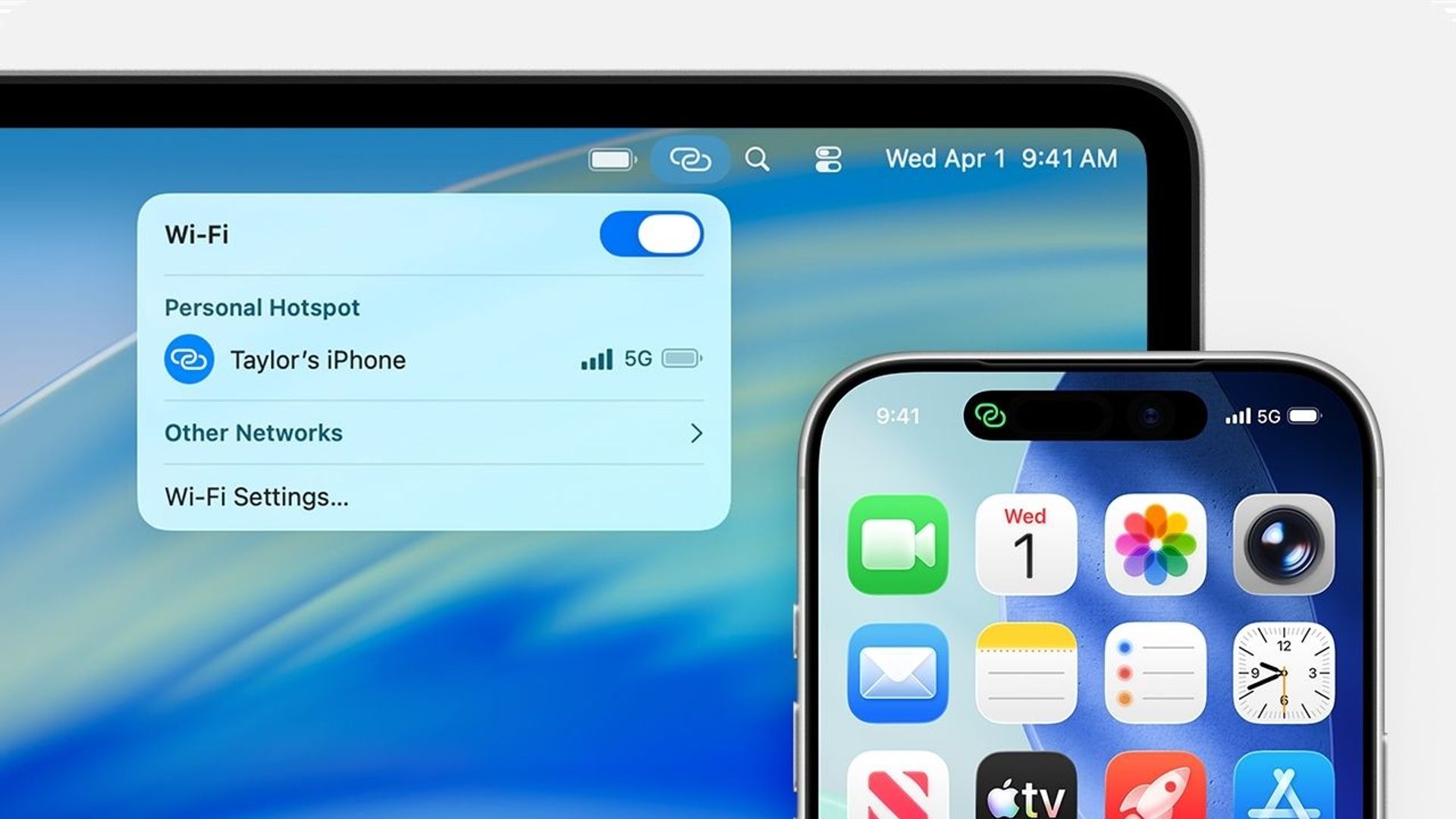
Apple has made it easier than ever to monitor who’s using your iPhone’s personal hotspot and how much data they’re consuming, thanks to a recent update to iOS 26.4.
If you’ve ever shared your cellular connection with a laptop, tablet, or another device, you can now check usage directly from the Personal Hotspot settings. Simply open the Settings app, tap Personal Hotspot, and select Data Usage to view a breakdown of connected devices and their individual data consumption.
The update moves this information out of the Cellular settings menu, where it was previously buried, and places it front and center for quicker access. This change is especially helpful for users on limited data plans who desire to avoid unexpected overages.
Apple devices running iOS 26.4 or later appear by name in the list, while older Apple devices, Android phones, Windows PCs, and other unrecognized hardware are grouped under “Other Devices.” The Data Usage option only shows up if the hotspot has been used recently.
To reset the tracking and start fresh, users can move to Settings > Cellular (or Mobile Service) and reset their overall cellular usage statistics, which also clears the hotspot data.
The improved visibility into hotspot activity supports better network management and data security, allowing users to identify unauthorized connections or bandwidth-heavy devices with just a few taps.
