
/data/photo/2024/03/15/65f3f72ec6105.jpeg "65f3f72ec6105.jpeg")
Smartphone storage is often consumed by media files – photos, images, videos, and audio – automatically downloaded by apps like WhatsApp. To free up space, users can now disable automatic media downloads within the messaging platform.
This adjustment is particularly useful as WhatsApp is designed to automatically download and store received media, which can quickly fill up a device’s memory. Disabling the feature prevents new files from automatically consuming storage space.
Read also: This WhatsApp Setting Can Actually Save Your Phone’s Memory – Here’s How
Here’s how to disable automatic downloads in WhatsApp. The process differs slightly between Android and iPhone devices, but both methods are straightforward.
How to Disable Automatic Downloads in WhatsApp
Disabling automatic downloads in WhatsApp is relatively simple. Users have at least two options. They can disable automatic saving of media to their device’s gallery, or they can control automatic downloads of photos and images sent via WhatsApp.
The following details the steps for both Android and iPhone devices.
1. Disabling Automatic Saving to Gallery on Android
- Open the WhatsApp application on your Android phone.
- Tap the three dots in the upper-right corner of the main WhatsApp screen and select “Settings.”
- Next, choose the “Chat” settings.
- Then, disable the “Media visibility” option.
- When this option is disabled, photos or images downloaded in WhatsApp will no longer be automatically saved to your Android gallery.
Read also: 4 Ways to Configure WhatsApp Storage So Your Phone’s Memory Doesn’t Fill Up Quickly
2. Disabling Automatic Downloads on Android
- Open the WhatsApp application on your Android phone.
- Tap the three dots in the upper-right corner of the main WhatsApp screen and select “Settings.”
- Next, choose the “Storage and data” settings.
- In the “Automatic media download” section, users will find three options for automatic media downloads based on network connection: “When using cellular data,” “When connected to WiFi,” and “When roaming.”
- For each network option, configure the settings to prevent media from downloading automatically.
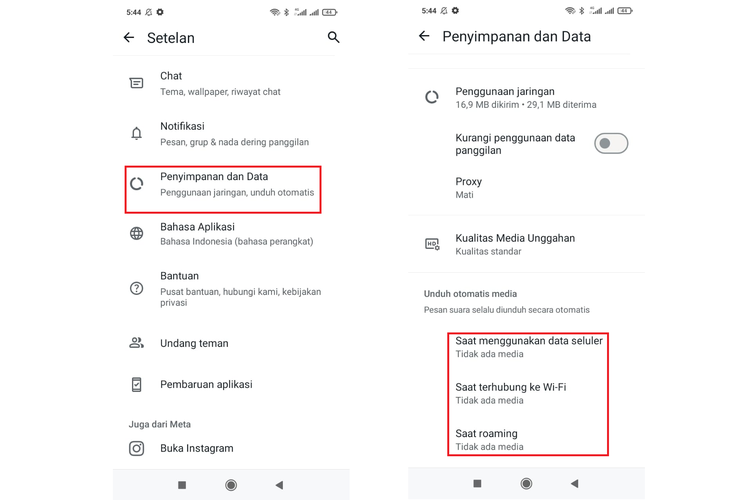 Ilustrasi cara menonaktifkan download otomatis di WhatsApp Android.
3. Disabling Automatic Saving to Gallery on iPhone
- Open the WhatsApp application on your iPhone.
- Then, select “Settings.”
- Next, choose the “Chat” settings.
- After that, disable the “Save to Photos” option.
- When this option is disabled, photos or images downloaded in WhatsApp will not be automatically saved to your iPhone gallery.
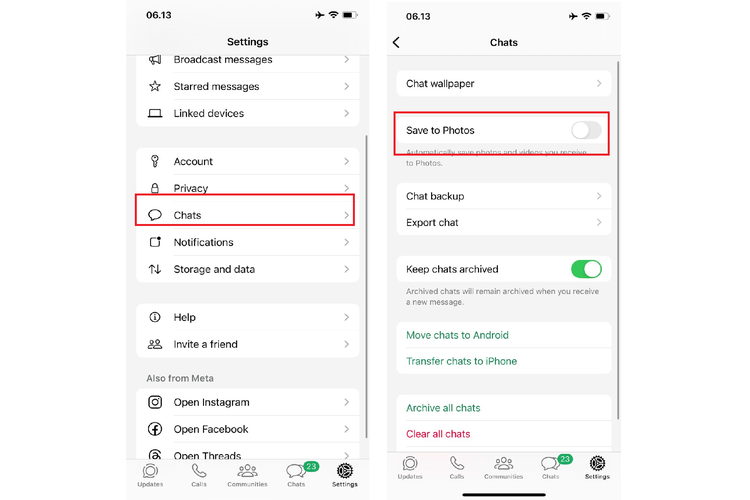 Ilustrasi cara menonaktifkan download otomatis di WhatsApp iPhone.
4. Disabling Automatic Downloads on iPhone
- Open the WhatsApp application on your iPhone.
- Then, select “Settings.”
- Next, choose the “Storage and data” settings.
- In the “Automatic media download” section, users will find four options for automatic downloads of different media types – photos, audio, video, and documents.
- For each media type, configure the settings to prevent automatic downloads.
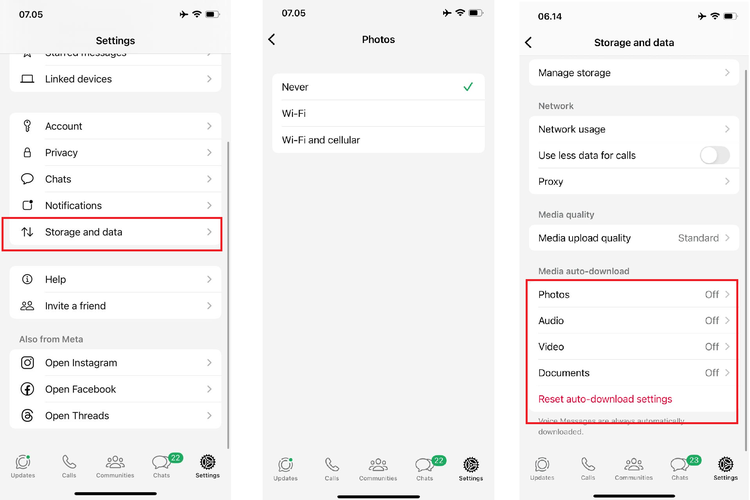 Ilustrasi cara menonaktifkan download otomatis di WhatsApp iPhone.
Read also: Blue Checkmarks Turned Off? Here’s How to Check if a WhatsApp Chat Has Been Read
Disabling automatic downloads in WhatsApp is a simple process. By adjusting these settings, WhatsApp won’t automatically download media, preventing it from filling up your phone’s memory.
Users can selectively download only the media they need, giving them greater control over their device’s storage. This information should be helpful for anyone looking to manage their phone’s storage capacity.
Get daily updates on technology and gadget news. Join the KompasTekno WhatsApp channel by clicking https://whatsapp.com/channel/0029VaCVYKk89ine5YSjZh1a. You must first install the WhatsApp application on your phone.
