
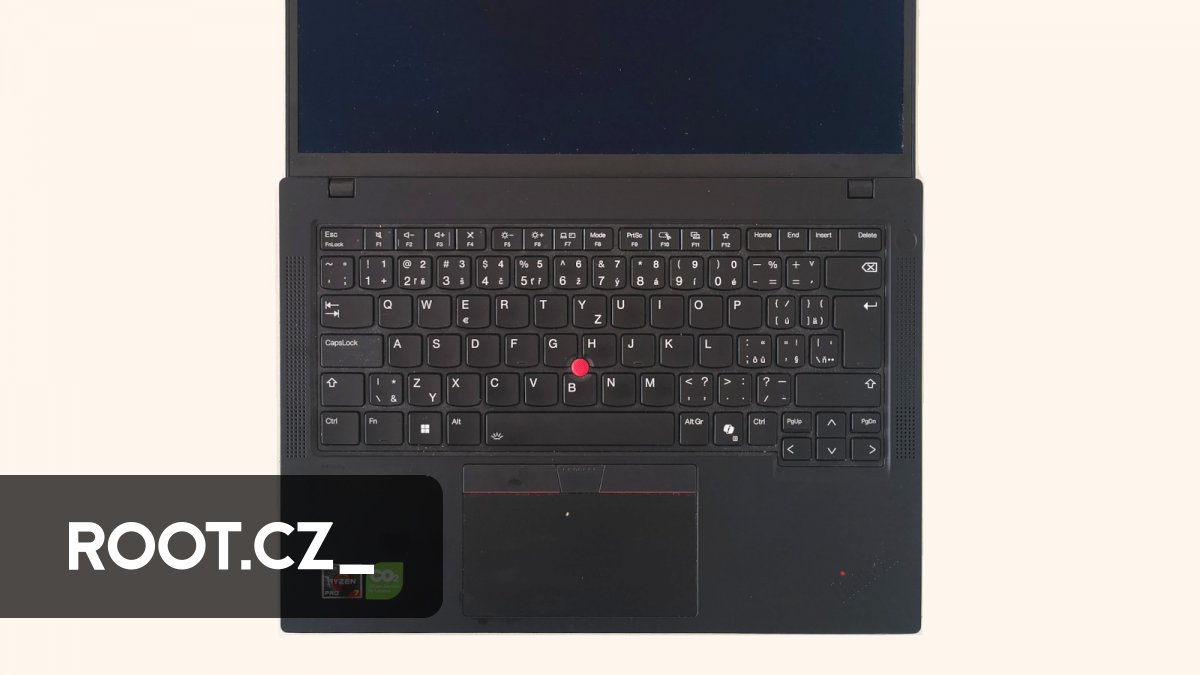
Following an audio malfunction with his preferred tuxedo Pulse 15, a long-time Linux user and content creator details his six-month experience with the Lenovo ThinkPad P14s as a replacement workstation. The in-depth review, published November 26, 2025, focuses on the laptop’s specifications, performance with a demanding workflow, and a candid assessment of both its strengths and shortcomings-including a surprisingly short battery life and a high-resolution display that requires adjustment.
In 2022, I acquired a Tuxedo Pulse 15 laptop. The machine served me well for an extended period, proving reliable for both work and travel. However, as I create a significant amount of video content for my YouTube channel, I began to find the 2TB drive insufficient. This led me to consider an upgrade, or potentially, a completely new machine.
I had been monitoring Lenovo’s ThinkPad lineup, looking for a model that met my specific requirements: an AMD processor, a high-resolution display, and a fully-loaded configuration. The ThinkPad P14s recently emerged as a strong contender.
When the audio output on my Tuxedo laptop began to malfunction, I decided it was time to invest in a new, dependable workstation. The choice naturally fell to the ThinkPad P14s.
Selecting the Right Model
Table of Contents
The ThinkPad T14s is another option to consider, and from my perspective, it’s nearly identical. The key difference is that the T14s series is only offered with integrated graphics. This would still be a viable model for my needs. There’s also a version without the “s” designation, which appears similar in terms of specifications. Perhaps a reader can clarify the manufacturer’s reasoning in the comments section below.
The selection process is considerably more straightforward with Tuxedo Computers.
Comparing the size of the ThinkPad P14s and the Tuxedo Pulse 15:
As of November 2025, I’ve been using the ThinkPad P14s for over six months, allowing me to formulate an independent assessment based on my experience. This review is primarily based on personal observations.
Specifications
When choosing a new laptop, I always find the configuration process challenging. I need to first select the specific model before determining the RAM and storage capacity. The chassis, and particularly the keyboard, are also important considerations. Therefore, understanding the available models from a manufacturer is crucial before searching for a fully-equipped version.
The ThinkPad P14s actually comes in two versions: one with an Intel CPU and another with an AMD CPU. Both appear identical externally. The manufacturer typically offers these models with ample RAM, large storage drives, and high-resolution displays.
Here are the specifications of my particular unit, which features the AMD CPU:
| Category | Value |
|---|---|
| Display | 14″ / 2880×1800 (Retina) / OLED / Non-Touch |
| Processor | 8-Core AMD Ryzen 7 8840HS (8C/16T 3.3/5.1 GHz) |
| RAM | 64GB |
| Storage | 2 TB (M.2 SSD) |
| Graphics | AMD Radeon 780M |
| Optical Drive | None |
| Video Outputs | HDMI, USB-C |
| Ports | Headphone/Microphone Combo Jack, LAN RJ-45, USB 3.2, USB 4.0, Thunderbolt 4 |
| Wireless Connectivity | Bluetooth, Wi-Fi 6 802.11ax |
| Features | SmartCard Reader, Fingerprint Reader, Backlit Keyboard, Power Delivery, Touchpad, TrackPoint, Webcam |
| Operating System | Windows 11 Pro |
| Color | Black |
Display
My unit features a display resolution of 2880×1800. However, the standard configuration for this model is 1920×1200 (Full HD), which I find insufficient. Especially on a laptop, where you typically work with a single display, a higher resolution is preferable.
My previous Tuxedo Pulse 15 had a resolution of 2560×1440, as did my older ThinkPad X1 Carbon. That resolution is ideal for my workflow, and it matched my primary 2560×1440 Samsung S24H850 monitor.
The 2880×1800 resolution on the ThinkPad P14s feels excessive, requiring significant scaling of text. The difference in resolution between the display and my external monitors is noticeable. Furthermore, the ThinkPad P14s has the smallest display size with the highest resolution, making everything appear smaller in comparison.
I considered purchasing new external monitors with higher resolutions, but most readily available options are around 2560×1440. I’ve heard that recent versions of KDE allow for independent font size adjustments for each monitor, which I plan to investigate. Perhaps readers can offer suggestions.
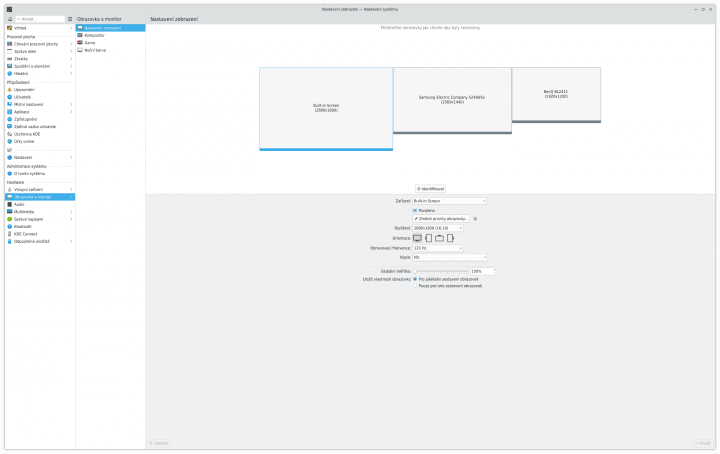
You can see the display and monitor resolutions in this screenshot from my KDE settings:
Ports
All ports are located on either the left or right side of the laptop. The ThinkPad P14s is powered exclusively via USB-C, with two USB-C ports capable of supporting both power and display connectivity. I’ve tested connecting a single external monitor via USB-C, and I believe it should be possible to connect two.
My second monitor is connected via HDMI. To ensure the HDMI port functions as a full-fledged second output, I had to configure the correct graphics driver:
Driver "amdgpu"
Therefore, it should be possible to connect up to three monitors in total.
The laptop has two USB Type-A ports, one on each side. While not a large number, I typically use a USB hub at my workstations. Unlike the ThinkPad X1 Carbon, the ThinkPad P14s includes a standard Ethernet RJ-45 port, eliminating the need for expensive branded adapters or USB network cards.
There’s also a standard mini-jack for audio, combining headphone and microphone functionality. On the right side, you’ll find a slot for a SmartCard reader. I previously worked on a project involving OpenCard encryption, but I no longer have the cards to test this functionality.
The chassis includes a nano-SIM card slot, usable if you have a model with an integrated modem.
Keyboard
The keyboard is robust, with a well-arranged layout featuring standard key sizes and arrow key placement. The Home, Delete, PageUp, and PageDown keys are also in conventional locations, making it suitable for IT professionals.
The keyboard also features backlighting and includes a Ctrl key in the lower-left corner, a recent addition to ThinkPads and now consistent with other laptops and keyboards. I personally welcome this change.
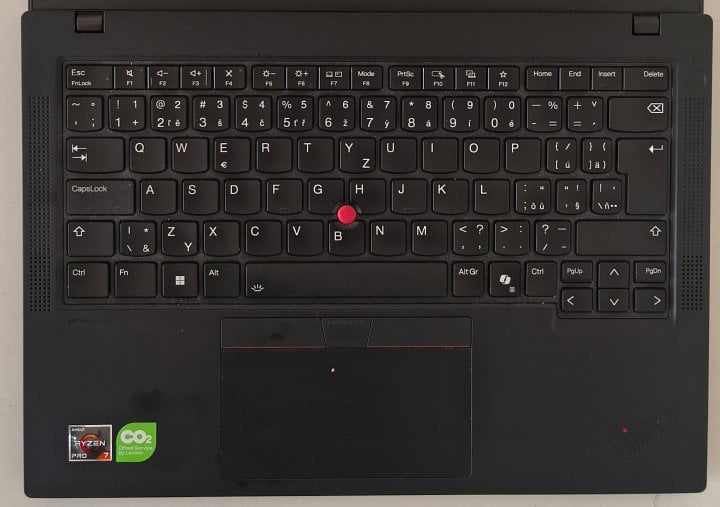
My unit has a Czech keyboard layout and keycaps. It’s even possible to change the keyboard layout in the UEFI settings, allowing you to select different types like US, UK, or CS. You can see a photo of the keyboard here:
First Boot
I didn’t even bother booting into Windows. For those needing to restore Windows, the license key is available in the UEFI.
In Linux, you can access it via the following file:
/sys/firmware/acpi/tables/MSDM
Installing a Linux Distribution
I typically use Debian on servers, but I prefer Mageia for desktops and laptops, as I consider it the best desktop distribution available. It’s specifically focused on the desktop user experience, ensuring it’s always up-to-date and functions seamlessly with the latest features.
Mageia avoids releasing versions with incompatible packages, a common issue with distributions like Ubuntu. New features are thoroughly tested before release, ensuring stability. Upgrades to new Mageia versions are also remarkably smooth. Often, the upgrade is so seamless that I forget it even happened.
In this case, I installed Mageia version 9 on the ThinkPad P14s laptop. The SSD ensures a very fast process.
Unfortunately, Mageia doesn’t currently support user-friendly installation in Secure Boot mode. You’ll need to enable it manually or choose a different distribution. Debian, for example, supports Secure Boot directly during installation.
Peripherals
The laptop includes a fingerprint reader located in the power button. I haven’t tested it and don’t know if it works or how to enable it.
Wi-Fi and Bluetooth function flawlessly in Linux and are accessible immediately after system installation.
The sound card is working, with output through the jack and presumably via HDMI. The microphone also functions correctly.
I control volume and output switching, including Bluetooth headphones and microphones, through KDE, which runs on top of the PulseAudio audio layer.
The RAM modules aren’t soldered to the motherboard but are in a slot, allowing for easy upgrades to larger capacities if needed.
The webcam works immediately after installation and offers good quality. It’s a significant improvement over my long-used Logitech C920, with better resolution and brightness resulting in less noise.
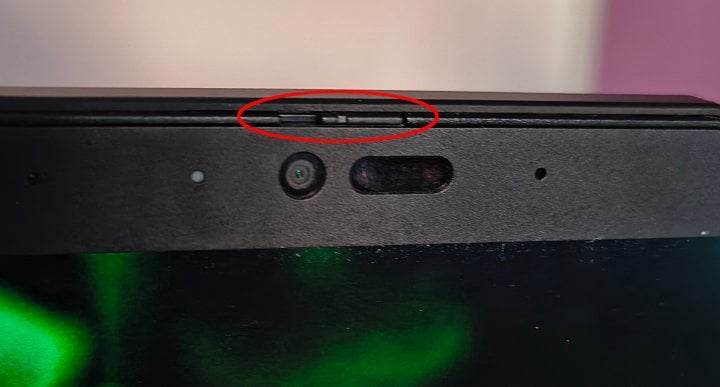
For reference, here’s a disk read speed test result:
# hdparm -tT /dev/nvme0n1
/dev/nvme0n1:
 Timing cached reads:   50872 MB in  1.98 seconds = 25672.75 MB/sec
 Timing buffered disk reads: 5530 MB in  3.00 seconds = 1842.92 MB/sec
The laptop also has a second free M.2 slot for an NVMe SSD or other card.
The TrackPoint and touchpad function as expected immediately after installation, as do sleep and hibernation to RAM and disk.
Video Overview
You can see a video overview of the ports and keyboard here:
UEFI Upgrade
In short, UEFI performs the same function as BIOS, but with additional capabilities.
Upon purchasing the ThinkPad P14s, the battery life was poor, lasting only about an hour. As I always do with new devices, I upgraded the firmware, as devices often ship with outdated versions. Manufacturers rarely update firmware before sale, so an upgrade is almost always worthwhile—whether it’s a router, disk, or laptop.
A photo before starting the UEFI flash:

The UEFI upgrade significantly improved battery life. The process is straightforward, requiring either a CD drive or a bootable USB flash drive. I described how to create a USB drive with the UEFI flashing utility in this article: upgrade UEFI laptopu ThinkPad P14s.
Battery Life
A key point is that Lenovo offers ThinkPads with different battery sizes. The ThinkPad P14s with an AMD CPU comes with a 50Wh battery, while the Intel CPU version has a 70Wh battery. This means the Intel models have nearly 50% more battery capacity and, consequently, longer runtimes with the same power consumption. I wonder if there’s an agreement between Lenovo and Intel at play here.
My Tuxedo Pulse 15 – Gen2 came with a 91Wh battery and consistently lasted between four and six hours on a single charge. I didn’t have to worry about running out of power. It wasn’t necessary to think about charging and I could typically get away with charging it once a day.
The ThinkPad P14s with the AMD processor lasted a maximum of 2 hours and 25 minutes, even in a very passive mode with minimal brightness.
Here’s a look at the power consumption as reported by Powertop:
| State/Activity Description | Consumption (W) |
|---|---|
| Thunderbird or Firefox running | 15 W |
| Console only | 9 W |
| Minimum brightness | 7 W |
| Display off | 6.5 W |

I use TLP to configure power management settings.
Power Supply
The laptop relies exclusively on USB-C for power. This can be an advantage if you have many USB power sources with sufficient wattage. For example, one of my Xiaomi phone USB power supplies can power the laptop, although not at full capacity, and the laptop complains loudly about it.
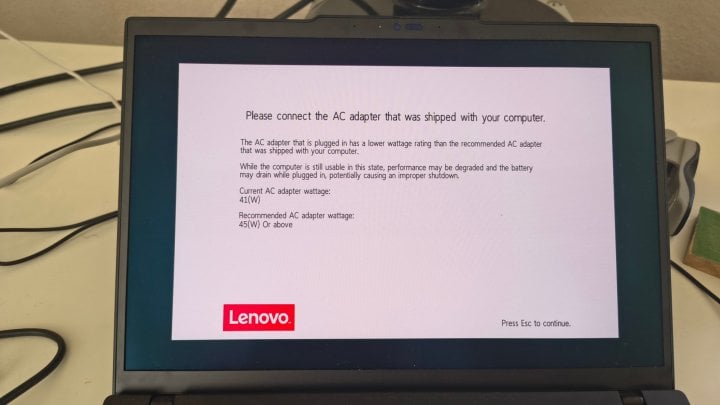
To power the laptop from a 12V car battery or a standard laptop power supply, I created adapters with a chip that supports USB Power Delivery. I have a universal cable that I use as a USB power source.
What Bothers Me About the ThinkPad P14s
The manufacturer could have certainly improved some elements. These are minor issues that would significantly enhance the user experience. Specifically, I dislike:
- The lack of a dedicated key to disable wireless peripherals (Wi-Fi and Bluetooth). I used this on every laptop when I needed to restart the network connection to connect to a new network with higher priority. Perhaps I could use the MODE key on F8 for this purpose.
- The USB-C ports could be spaced further apart. Connecting something other than a cable, such as a USB-C microphone, is difficult. In that case, I have to disconnect the power supply, as the microphone obstructs the other USB-C port.
- Despite optimizing the configuration and upgrading the UEFI, the battery life disappointed me. It doesn’t compare to my previous Tuxedo Pulse 15. It feels like an intentional decision by the manufacturer, as the Intel CPU models ship with a significantly larger battery.
- There’s a crackling/jerky sound when the load changes. It’s quite distracting when working in silence. I observe the same behavior before and after the UEFI upgrade.
In contrast to the Tuxedo, I appreciate the more solid chassis of the ThinkPad P14s. Full USB-C charging may also be a significant advantage for some.
Did I Make the Right Choice?
The ThinkPad P14s has shorter battery life and a resolution that’s too high for my practical needs. If I could, I’d prefer to have stayed with my original machine, where these parameters were more suitable. Ultimately, however, the new laptop fully meets my work requirements, whether in programming or server administration. I expect it to be very durable.
(Images by Josef Jebavý.)
