

Windows 11 Start Menu Update Finally Shows All Apps Without Extra Click
Microsoft has resolved a long-standing user complaint with Windows 11 by updating the Start menu to display a complete list of installed applications without requiring users to click an “All” button.
For years, the Windows 11 Start menu presented a curated list of recommended apps and files, placing a full application list behind an additional click. The new update, rolling out to users today, October 29, 2025, offers three distinct views – a grid, an alphabetical list, or a category-based arrangement – all accessible directly from the Start menu. Users can also disable the “Recommended” section entirely to prioritize the full app list. This change streamlines access to programs, potentially boosting user productivity.
The update is available for those running Windows 11 build 26100.7019 or 26200.7019 or newer; users can check their version by pressing Windows+R and typing “winver.” While the update may appear automatically after installing the latest Windows updates, those with the correct build can also enable the feature using the ViveTool utility by following specific command-line instructions. For more technical details on using ViveTool, see the ViveTool GitHub repository.
Microsoft officials have indicated that the rollout will continue in phases, ensuring a stable transition for all Windows 11 users.
Four years after the debut of Windows 11, Microsoft has finally fixed one of the biggest problems with its Start menu: The need to click the “All” button to view a complete list of all of your apps. A new Start menu, which gives you three different ways to view all installed programs without that extra click, is slowly rolling out to users.
The original Start presents a list of shortcuts to apps and files that Windows chooses for you, and places them in a Recommended section that appears below the list of pinned apps.
The new Start menu offers the ability to turn off the Recommended section.
To do so, right click anywhere in the menu, select Settings, find the Personalization options menu, then toggle off the options to Show recently added apps, Show recommended files, and Show recommendations for tips.
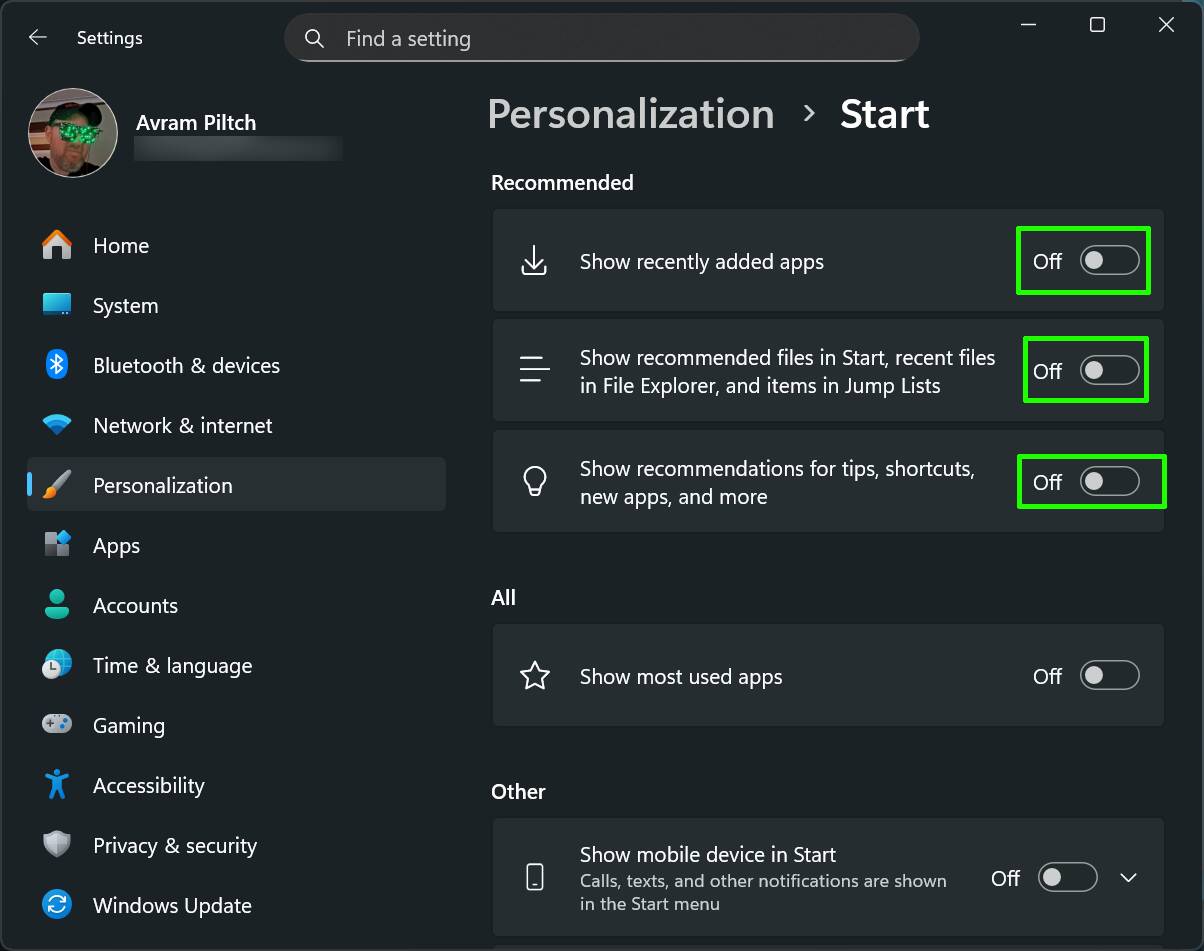
Toggle off the Recommended section – Click to enlarge
If you hide the Recommended section, which we advise, a list of shortcuts to all of your apps appears in the Start menu right below your pinned shortcuts. If you don’t hide Recommended, the list of all apps appears below it.
You can show the list of apps as a grid arranged alphabetically, as a list in alphabetical order, or grouped by category. The most information-dense and comprehensive option is the grid.
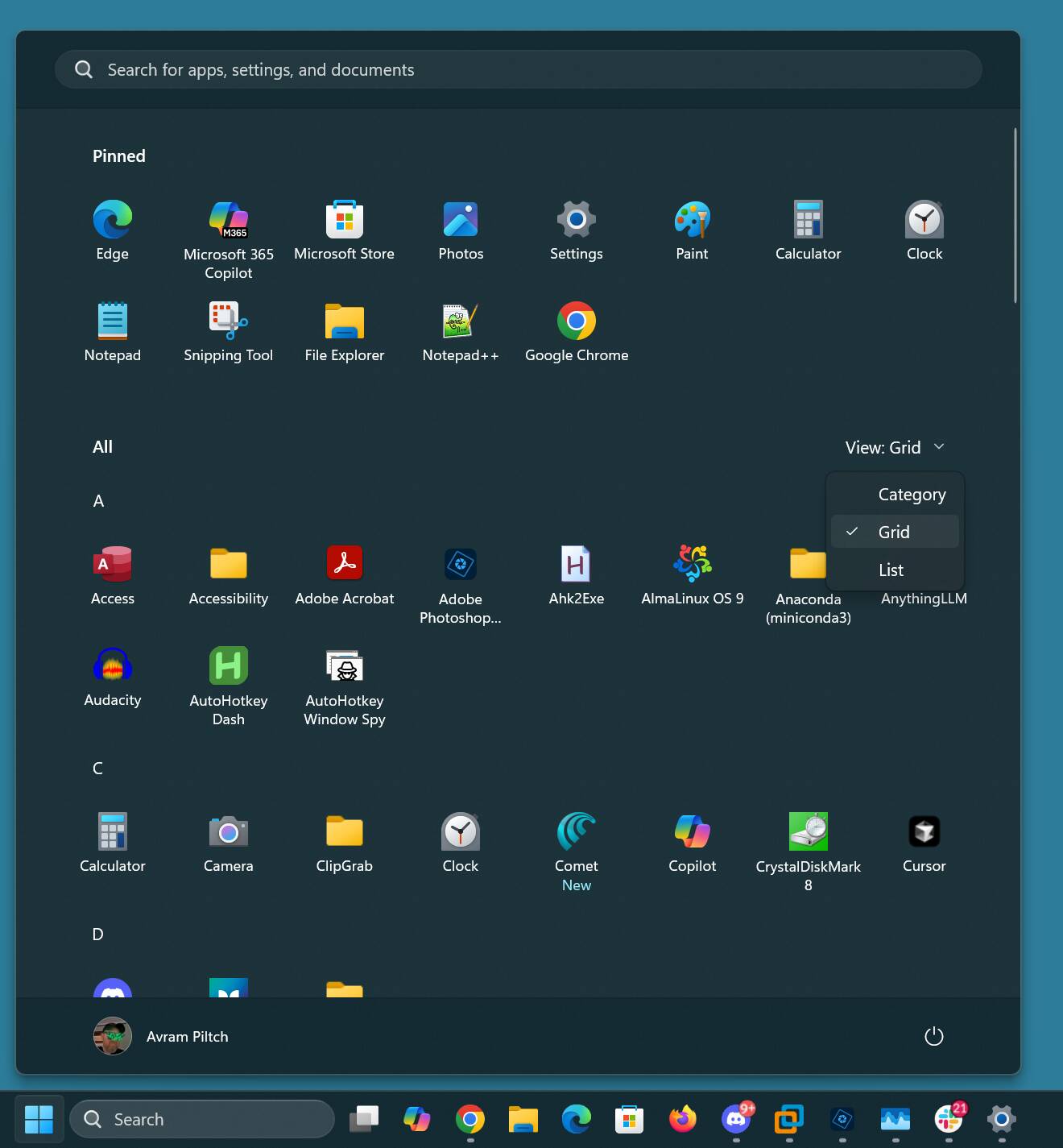
New Windows Start menu with grid view – Click to enlarge
If you don’t change to the grid, the category view appears by default.
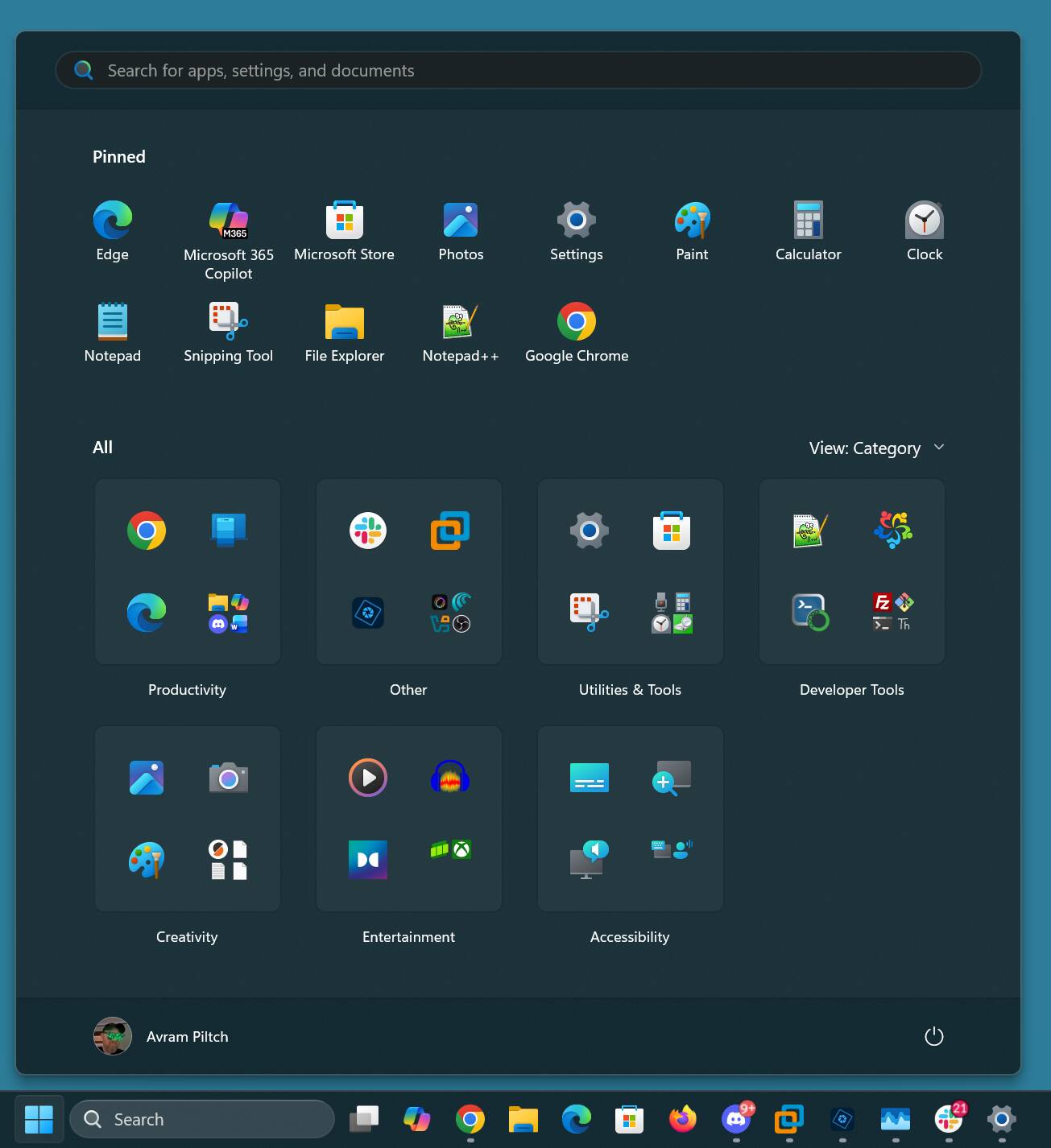
New Start menu with category view – Click to enlarge
How to make the new Start menu appear
To get this new Start menu, you must be running build 26100.7019 or 26200.7019 or newer versions of Windows 11. Make sure you have all the latest updates installed by going to Settings->Windows Update and clicking the Check for updates button. You can check your Windows build number by hitting Windows+R to open the run prompt and running winver.
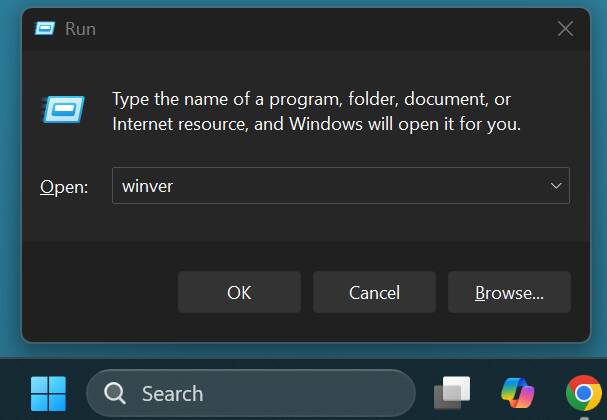
Invoke winver to see your Windows build number – Click to enlarge
If you have the right build number, it’s possible that the new Start menu will appear on its own. But, if not, you can use the ViveTool, a utility that enables hidden Windows features, to turn it on.
First, download the ViveTool and unzip it to C:vive. Then open a command prompt as an administrator and change into that directory.
cd c:vive
Finally, issue the following command:
vivetool /enable /id:57048231,47205210,56328729,48433719
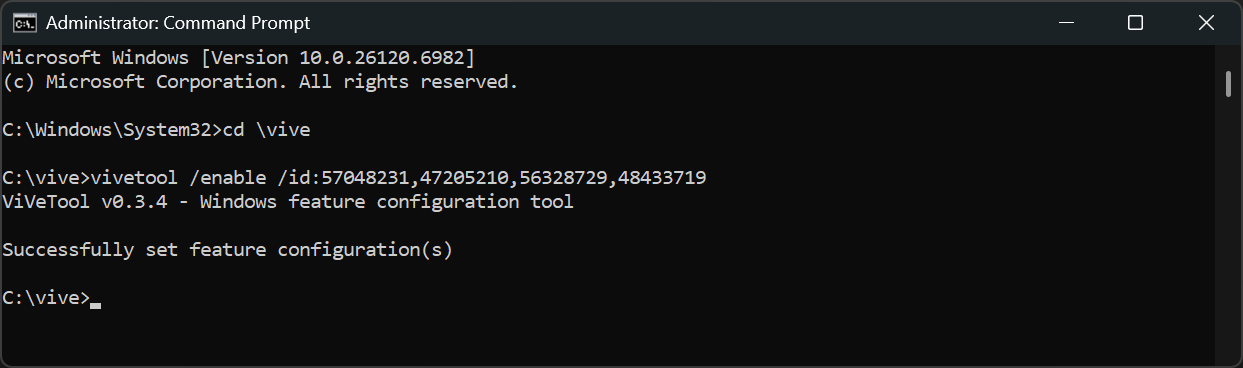
Use the ViveTool to enable the new Start menu – Click to enlarge
After a restart, the new Start menu should appear as soon as you click on the Start button. ®
