iOS 26.1 Update Introduces New Customization Options for iPhone Users
Apple is preparing to release iOS 26.1, an update that will give iPhone users greater control over their device’s appearance and functionality with four new customizable settings.
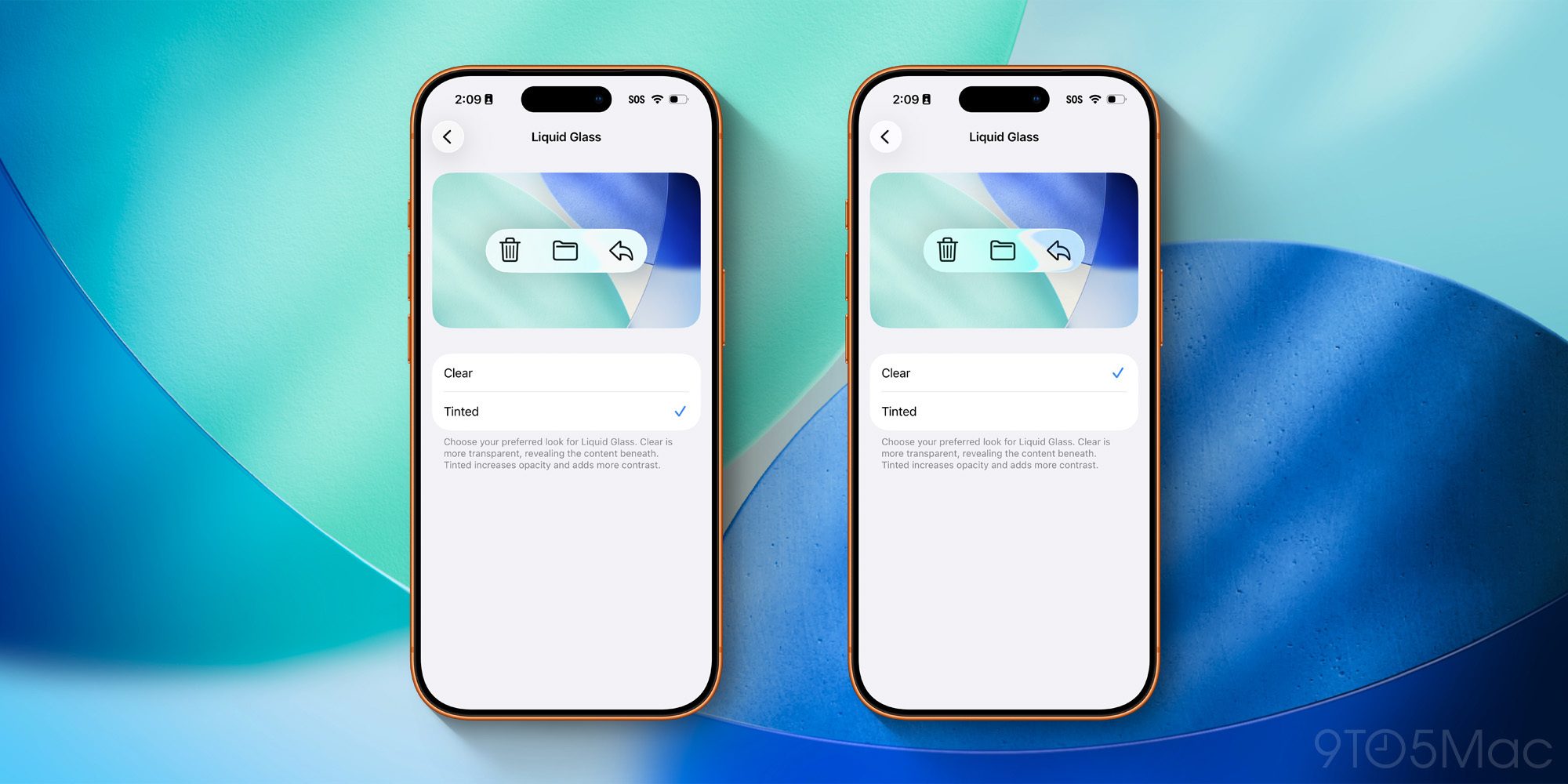
The update addresses user feedback regarding the “Liquid Glass” design introduced in iOS 26, offering a new toggle under Display & Brightness. Users can now choose between ‘Clear,’ which maintains the original style, and ‘Tinted,’ which increases opacity and contrast for improved readability. This change comes as some users found the initial Liquid Glass design difficult to view comfortably.
iOS 26.1 also allows users to disable the Lock Screen swipe gesture for launching the Camera app, a feature that has persisted despite the introduction of multiple alternative camera access methods in recent years. The toggle, found within the Camera settings, provides a way to prevent accidental camera activations. For those interested in learning more about iPhone photography, resources like Adobe’s photography guides can be helpful.
Further customization options include a return to a “Slide to stop” gesture for alarms and timers, replacing the larger buttons introduced in iOS 26, which some users found too easily triggered. A setting called ‘Prefer Single-Touch Actions’ within Accessibility allows users to revert to single-tap buttons if desired. Additionally, the update introduces new settings for the Local Capture feature – allowing users to specify a save location and choose to record audio only – found under Settings ⇾ General ⇾ Local Capture. You can find more information about managing storage on your iPhone here.
Apple has not yet announced a specific release date for iOS 26.1, but officials stated the update is expected to roll out in the coming weeks.
iOS 26.1 is expected to launch soon, and when it does, it will provide users with four new settings to customize the way their iPhone looks and works. Here’s what’s new.
Liquid Glass design
Apple shipped a bold new Liquid Glass design in iOS 26. But as might be expected considering the iPhone’s massive user base, the update hasn’t been everyone’s favorite.
Rather than tweaking Liquid Glass for everyone, iOS 26.1 instead introduces a new Settings toggle.
Available under Display & Brightness ⇾ Liquid Glass, the new setting offers two Liquid Glass options:
‘Clear’ retains the same style of Liquid Glass that was available previously. If you don’t like the clear look, however, or perhaps find readability a challenge, the new ‘Tinted’ option will increase opacity and add more contrast systemwide.
Camera swipe on Lock Screen
Not too long ago, the iPhone offered far fewer methods for launching the Camera app.
The main method for a lot of users was (and for many still is) swiping left on the Lock Screen.
However, in 2017 the iPhone X introduced a dedicated on-screen Camera button; in 2023, the Action button became a Camera launcher for many; and in 2024, Camera Control debuted.
Despite this abundance of new options for launching Camera, the previous swipe gesture was still always available—and couldn’t be disabled.
Now in iOS 26.1, Apple has finally changed that.
If you like the Lock Screen Camera swipe, it’s still an option in iOS 26.1. But if you never use it except by accident, there’s now a toggle to turn it off.
Inside Settings ⇾ Camera you’ll find a new ‘Lock Screen Swipe to Open Camera’ option. It’s on by default, but you can now choose to disable it.
Less swipes, more taps
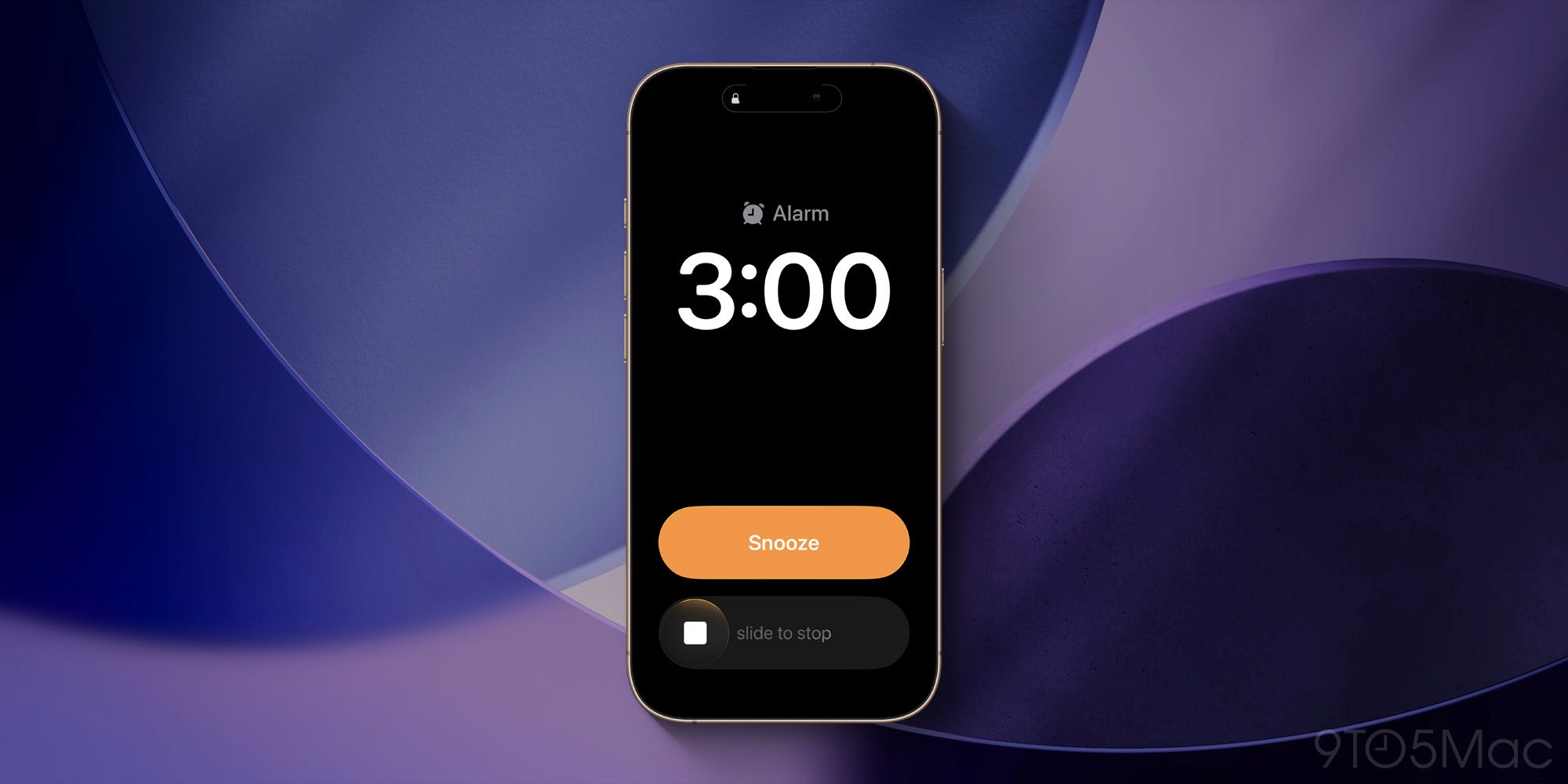
iOS 26.1 reintroduces the classic ‘Slide to unlock’ iPhone gesture, but redeploys it for alarms and timers.
In iOS 26, the Lock Screen design for alarms and timers underwent a big change—the buttons to stop or snooze got huge.
For some users, this redesign made it too easy to accidentally dismiss an alarm or timer. So in iOS 26.1, the standard ‘Stop’ button has been replaced by a ‘Slide to stop’ gesture.
If you don’t like the change, however, you can go to Settings ⇾ Accessibility ⇾ Touch to find a way to reverse it.
The new setting is called ‘Prefer Single-Touch Actions.’ Simply put, it makes sure that interface elements requiring a sliding action (like the new alarm and timer screens) use single-tap buttons instead.
Local Capture settings
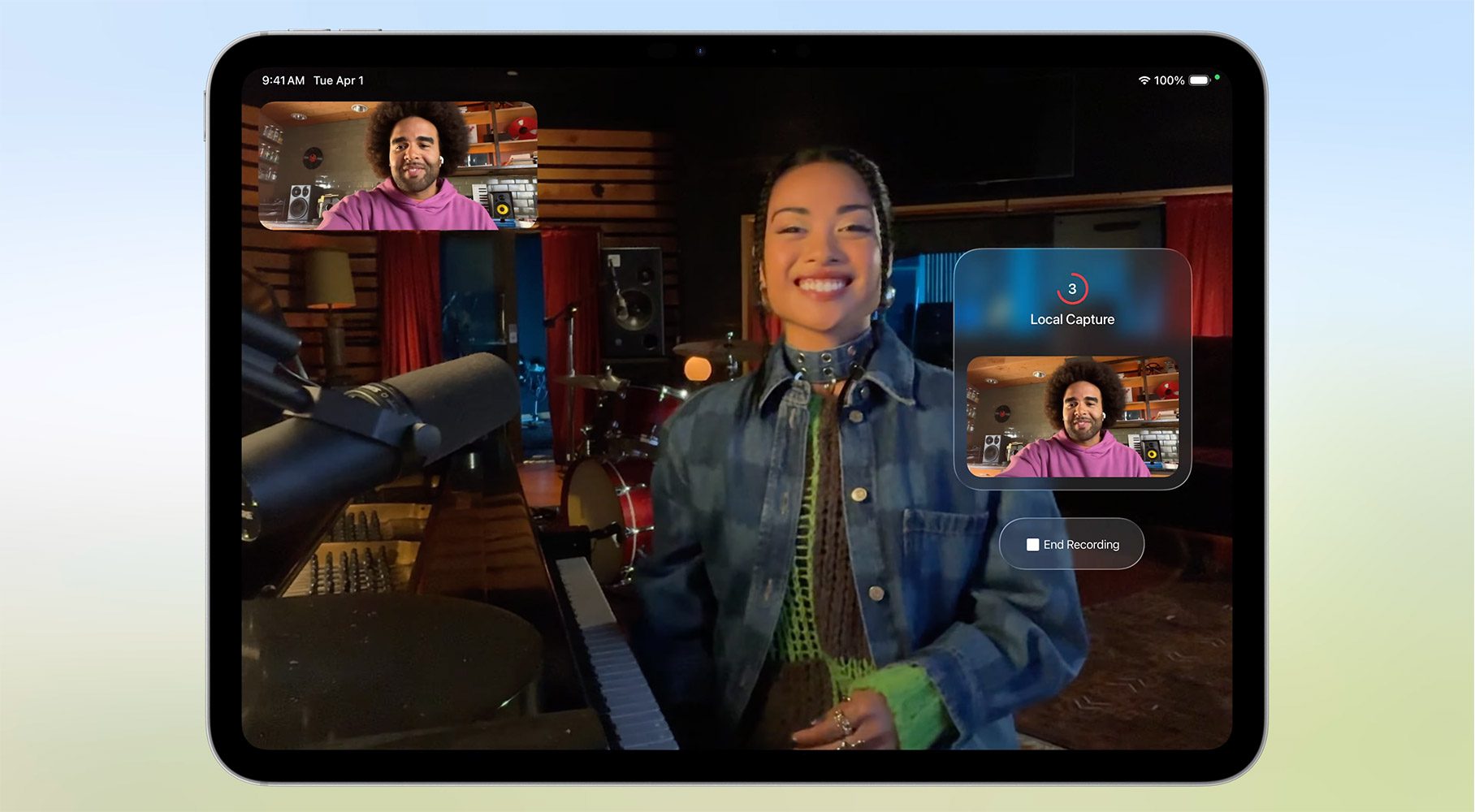
iOS and iPadOS 26 introduced a new Local Capture feature for on-device video and audio recording.
Local Capture makes it easier than ever to do things like create podcasts directly from an iPhone or iPad.
By default, recordings are saved to the Downloads folder in the Files app. But in iOS 26.1, there are two new related settings:
- Save Location, which lets you set a different save destination
- Audio Only, which ensures Local Capture only saves audio, not video
These can both be found in the new menu inside Settings ⇾ General ⇾ Local Capture.
Which new Settings additions in iOS 26.1 are you most excited for? Let us know in the comments.
Best iPhone accessories


FTC: We use income earning auto affiliate links. More.